40% off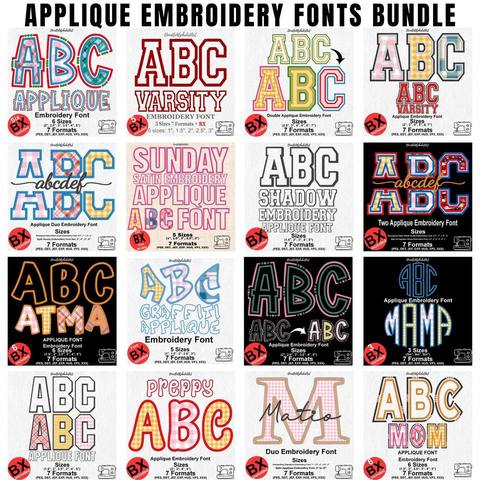
Applique Embroidery Font Bundle
PES · DST · JEF · EXP · HUS · VP3 · XXX · BX
Every font is 40% off. Two fonts are 45% off. Three or more are 50% off.
Embrilliance
Most people who start with machine embroidery soon realize that simply buying designs is not enough. You want to place a name next to a motif, change a color, or make a purchased design fit the hoop you actually own. Embrilliance Essentials was built for that kind of everyday editing. It runs on both Mac and Windows and focuses on combining, resizing, recoloring, and preparing existing stitch files and lettering so they are ready for your machine.
Open the program and choose File → New Page. A blank workspace appears. Everything you add, designs, lettering, or both, lives on this page until you save.
Across the top you will find the tools used most often:
Set the hoop early. A common choice is 130 × 180 mm, which the software displays as approximately 5 × 7 inches. Matching the hoop size keeps later measurements and the Fit to Hoop command accurate.
The Merge Stitch File button is the main way to import designs you have already purchased.
To resize, click a design so the handles appear and drag a corner. Watch for dark lines or gaps. Those usually mean the design has been stretched or compressed too far and will not sew cleanly. Modest changes are safer. You can also select designs and use the centering tool, or choose Fit to Hoop to enlarge a design as much as possible while still staying inside the current hoop.
When one design overlaps another, the software removes the stitches underneath so the machine does not sew two layers in the same area. This is especially helpful with appliqué. The stitch order for an applique letter is in how to stitch an applique font.
Click the A button. BX fonts are the easiest: you type the text and the letters appear already spaced and aligned. Ordinary stitch-file alphabets require you to bring in each letter separately and then arrange them by hand. Whenever possible, choose fonts that are supplied in BX format. If the BX file is not installed yet, follow how to install a BX font.
The panel on the right lists each design and the individual steps inside it. A typical appliqué design shows three steps: the position outline, the tack-down stitch, and the final satin outline. Click any step to change its thread color. If you are unsure what a step does, open the Stitch Simulator and play through the design.
The numbered list of designs is also the order the machine will sew them. Drag items up or down to change that sequence, for example stitching a name first or last. You can mirror any design with the vertical or horizontal flip tools. Under the Stitch menu the compensate control lets you thicken thin lettering. A setting of 2–3 is common so it sews more reliably.
Go to File → Save As, give the design a clear name, and choose the format your machine expects. Transfer the finished file by USB or the method your machine supports.
Embrilliance also provides a free mode called Express. You download the platform and continue past the serial-number screen. No purchase is required. In Express you can install BX fonts, type names, words, and monograms, make basic color or spacing adjustments, and save the lettering in most common machine formats. It is useful if keyboard-style lettering is all you need.
Express does not include the editing tools that make the rest of this guide possible. You cannot merge purchased stitch designs with each other or with lettering. You cannot resize designs while the software recalculates density. There is no stitch simulator, and features such as removing overlapping stitches or reordering elements are unavailable. Express handles free BX lettering well, but combining designs, careful resizing, color and step control, and previewing stitch order all require the paid Essentials version.
Install a BX font · Which file your machine uses · Browse BX fonts
PES · DST · JEF · EXP · HUS · VP3 · XXX · BX

BX · PES · DST · JEF · EXP · HUS · VP3 · XXX

BX · PES · DST · JEF · EXP · HUS · VP3 · XXX

PES · DST · JEF · EXP · HUS · VP3 · XXX · BX

PES · DST · JEF · EXP · HUS · VP3 · XXX · BX

PES · DST · JEF · EXP · HUS · VP3 · XXX · BX


